Watermark
Public Visibility
Inspirations
Baby AI Video Generator
Turn one baby photo or prompt into a short family-safe AI video with a clear moment, motion, and format.
Turn a baby photo or prompt into a short AI video
Use BabyVideo.ai when you want a gentle family clip, milestone memory, birthday message, or vertical social video without learning video editing.
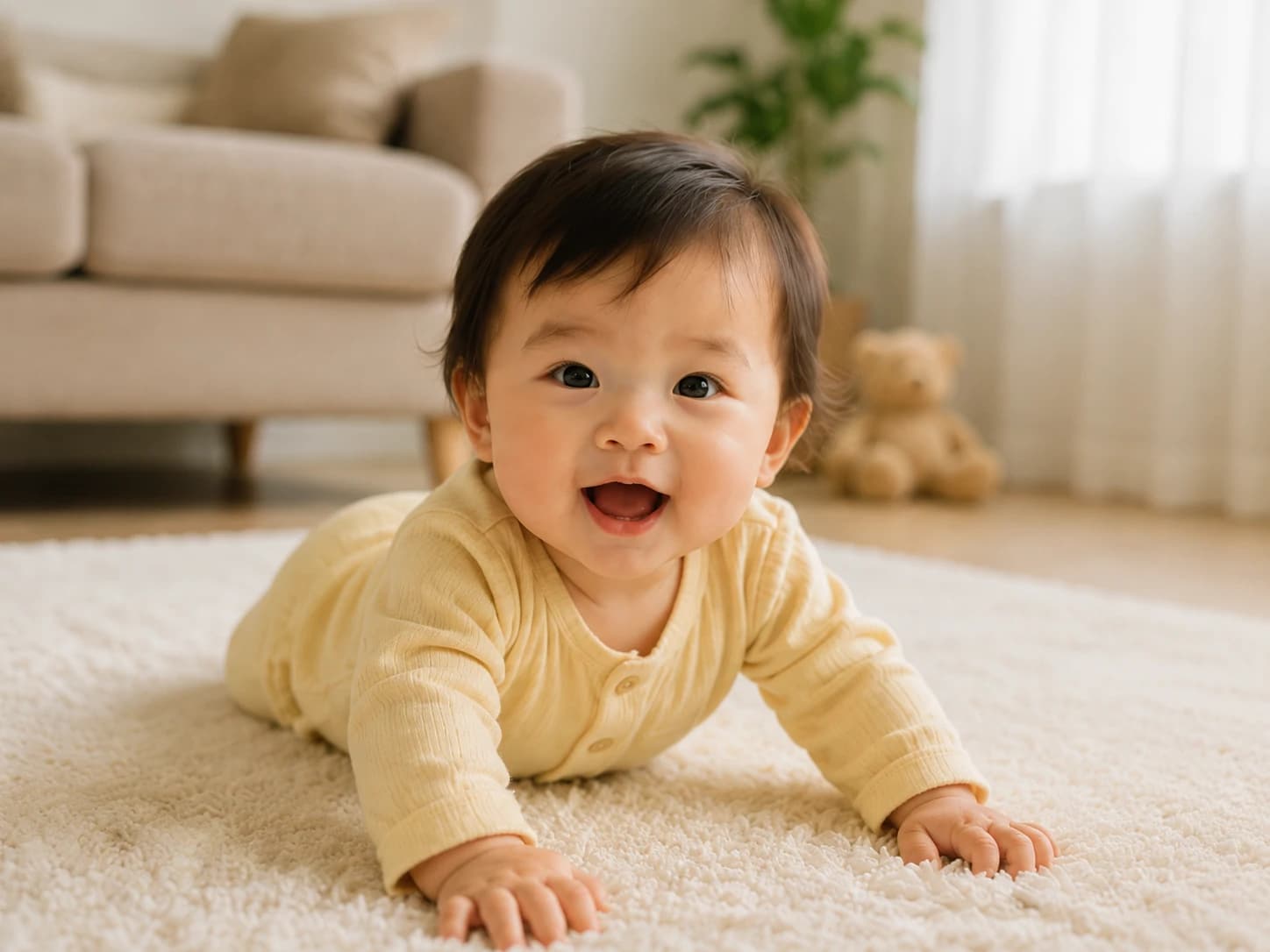
Start with one moment, then choose the motion
The strongest baby AI videos start from a real use: a favorite photo for grandparents, a soft smile, a first-steps what-if, or a 9:16 clip for Reels, Shorts, TikTok, and private family chats.
Baby photo to video generator: upload one clear baby photo and guide the motion with a short prompt.
Text-to-video baby scenes: describe smiles, crawling, waving, sleeping, first steps, or a cozy family moment.
Preview-friendly controls: choose duration, aspect ratio, model, and credits before you generate.
Best for baby videos with one clear action
Keep the page focused on a single scene before you choose settings. One action, one setting, and one camera direction are easier to judge than a broad request for something cute.
Make every baby video generation easier to judge
Use one motion goal: smiling baby video, crawl forward, wave at camera, baby first steps video, or a gentle look-around clip.
Pick the output context early: 9:16 for Reels, Shorts, and TikTok; 16:9 for family albums or wider story clips.
Keep the same baby photo and change only the prompt when you want controlled baby photo animation variations.
Sample prompt
Create a 5-second realistic cute baby video. A baby around 10 months old sits safely on a soft cream-colored blanket in a warm bright nursery. The baby looks at the camera, smiles naturally, blinks, waves one small hand, and gently leans forward with soft baby-like movement. Warm morning light, cozy family atmosphere, shallow depth of field, natural skin texture, realistic baby proportions, smooth motion, vertical 9:16, no text, no watermark, no extra people.
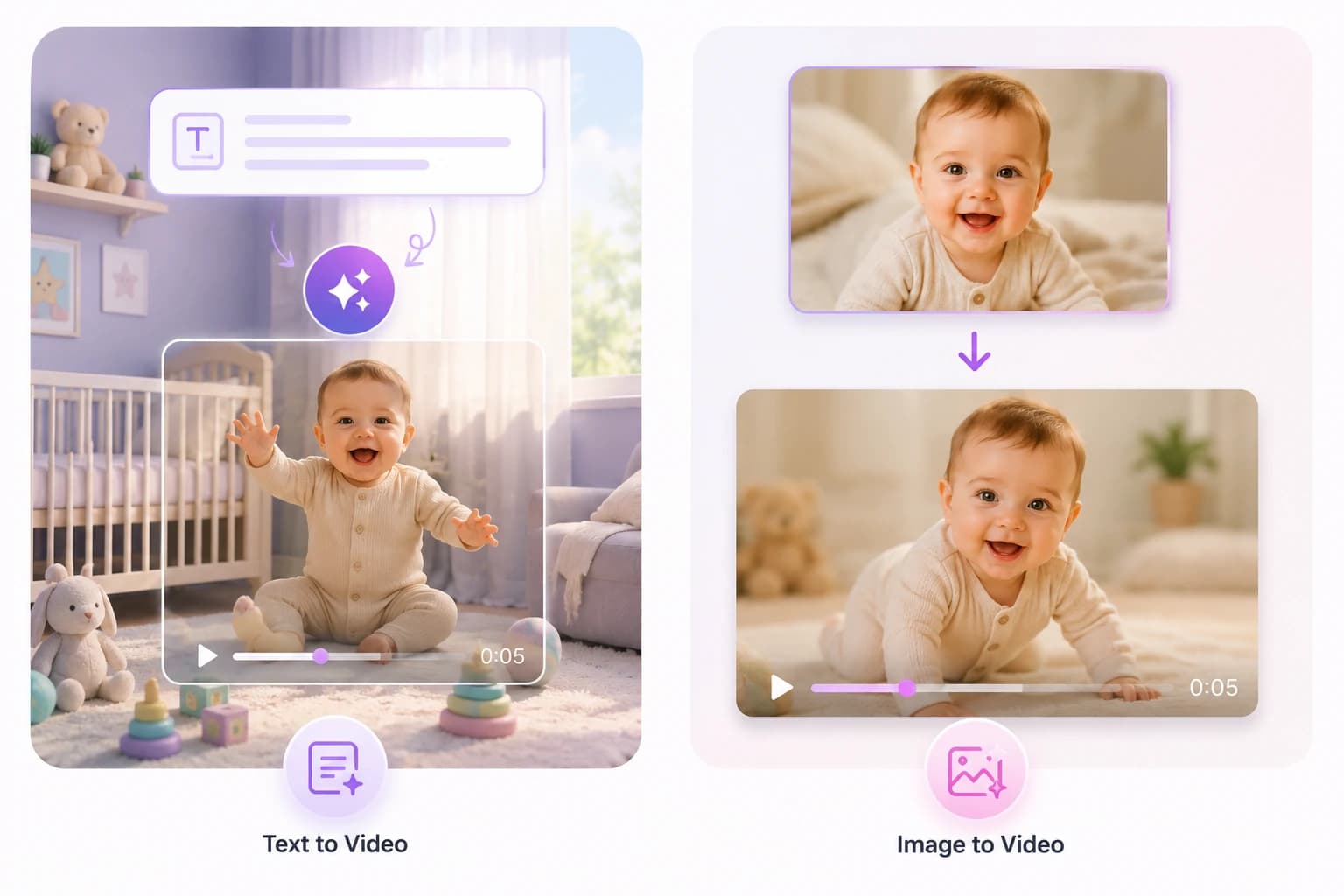
Choose image-to-video or text-to-video before prompting
Use image-to-video when you have a strong baby photo. Use text-to-video when you need a new scene and do not need to preserve a real face.
Text to Video for new baby scenes
Use when you do not need a specific real photo.
Describe age, action, setting, lighting, and camera movement in one compact prompt.
Choose 9:16 for mobile-first baby videos or 16:9 for wider family clips.
Image to Video for animating a baby photo
Use when the baby's face, pose, and outfit should stay close to the uploaded photo.
Add a short prompt for the motion, such as smile, blink, crawl, wave, or first steps.
Generate 5s first when testing a new photo, then extend once the motion direction is right.


Choose the baby photo based on the motion
A baby photo that works for a smile may not work for crawling, waving, or first steps. Pick the photo after you know what the short video should do.
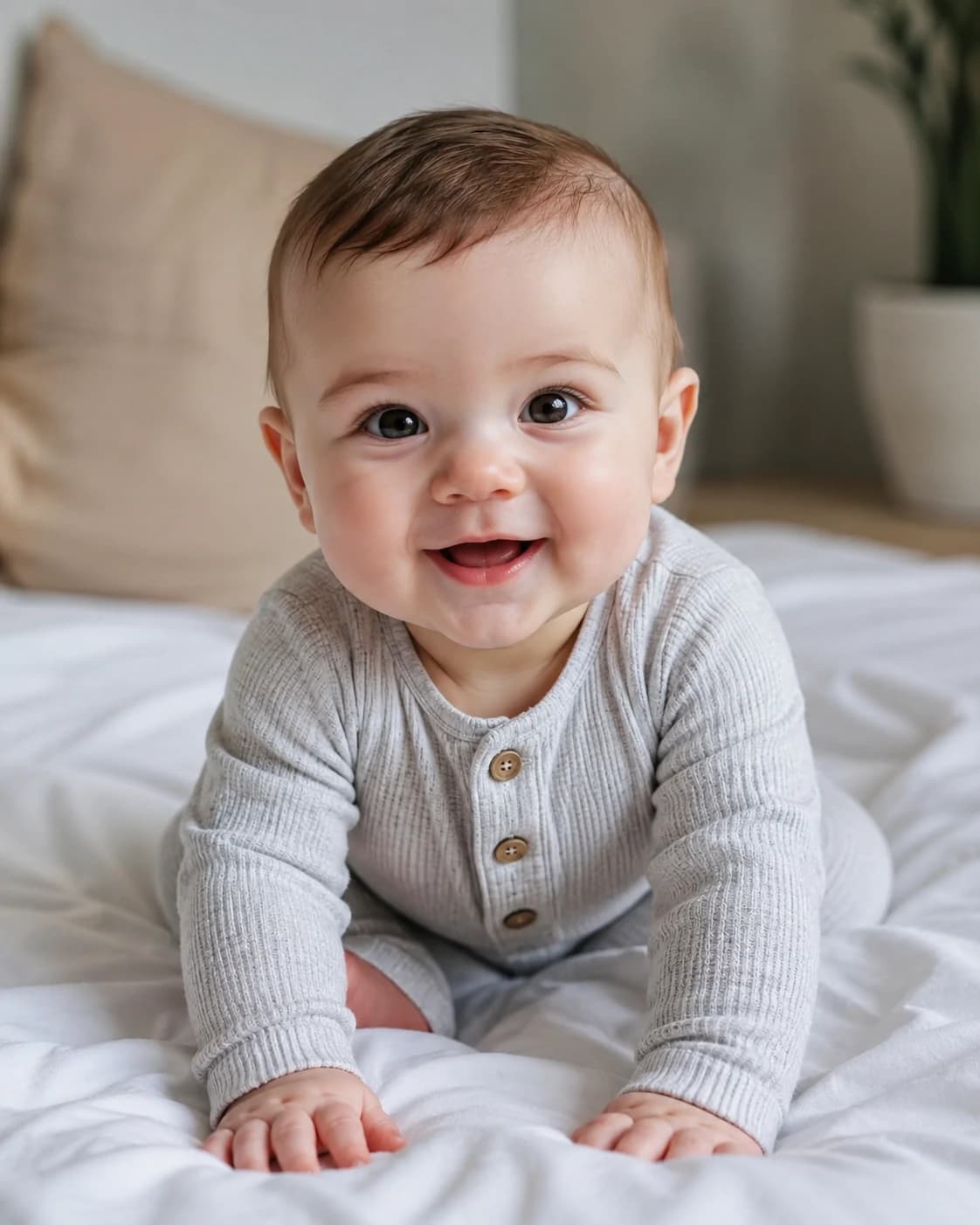
Let the pose decide the action
For smiles, blinks, and tiny waves, use a close portrait with the face, shoulders, and hands readable.
For crawling or first-step ideas, use a wider photo where the hands, torso, and legs are not hidden.
Keep the face unobstructed; pacifiers, hands, toys, and blankets make identity preservation harder.
Leave space around the baby if you want a camera push-in, vertical crop, or gentle body movement.
Avoid heavy filters and screenshots when the goal is realistic skin texture and natural eye detail.
For text-to-video, describe the age, action, setting, lighting, and camera style instead of referencing a real baby photo.
Prompt ideas that turn one baby photo into a sweet short video
Start with a simple baby photo, then describe one clear action, one cozy setting, and one camera style. These examples are made for short, natural baby videos that feel warm, personal, and easy to share.
A sweet wave for family
Animate this baby photo into a warm 5-second video. The baby smiles at the camera, blinks naturally, and gives one tiny wave. Cozy nursery background, soft morning light, gentle camera push-in, vertical 9:16.
Birthday thank-you clip
Turn this baby photo into a short birthday thank-you video. The baby looks at the camera, smiles, gives a small wave, and appears excited. Colorful party background, soft indoor light, cheerful but natural mood, vertical 9:16.
First steps from a standing photo
Use this standing baby photo to create a realistic first-steps video. The baby takes two careful steps toward the camera, arms slightly raised for balance, smiling proudly. Warm family-room light, stable camera, natural movement.
Fix the clip by matching action, pose, and format
For broad baby video ideas, the best next step depends on what failed: the action, the source photo, the camera framing, or the mode you chose.
Read the result before changing the prompt
If the face changes too much, use image-to-video with a clearer portrait and ask for smaller motion.
If the body movement breaks, choose a photo that shows more of the body or switch to a gentler action.
If the text-to-video scene feels generic, add a specific setting such as nursery, birthday table, crib, or family room.
If the clip feels crowded on mobile, regenerate with vertical framing and a centered baby subject.
If the idea is speech, dance, or singing, use the dedicated tool instead of forcing the general generator.
How to create a baby AI video
Start with the moment you want to share, choose the correct mode, then keep the motion simple enough to review.
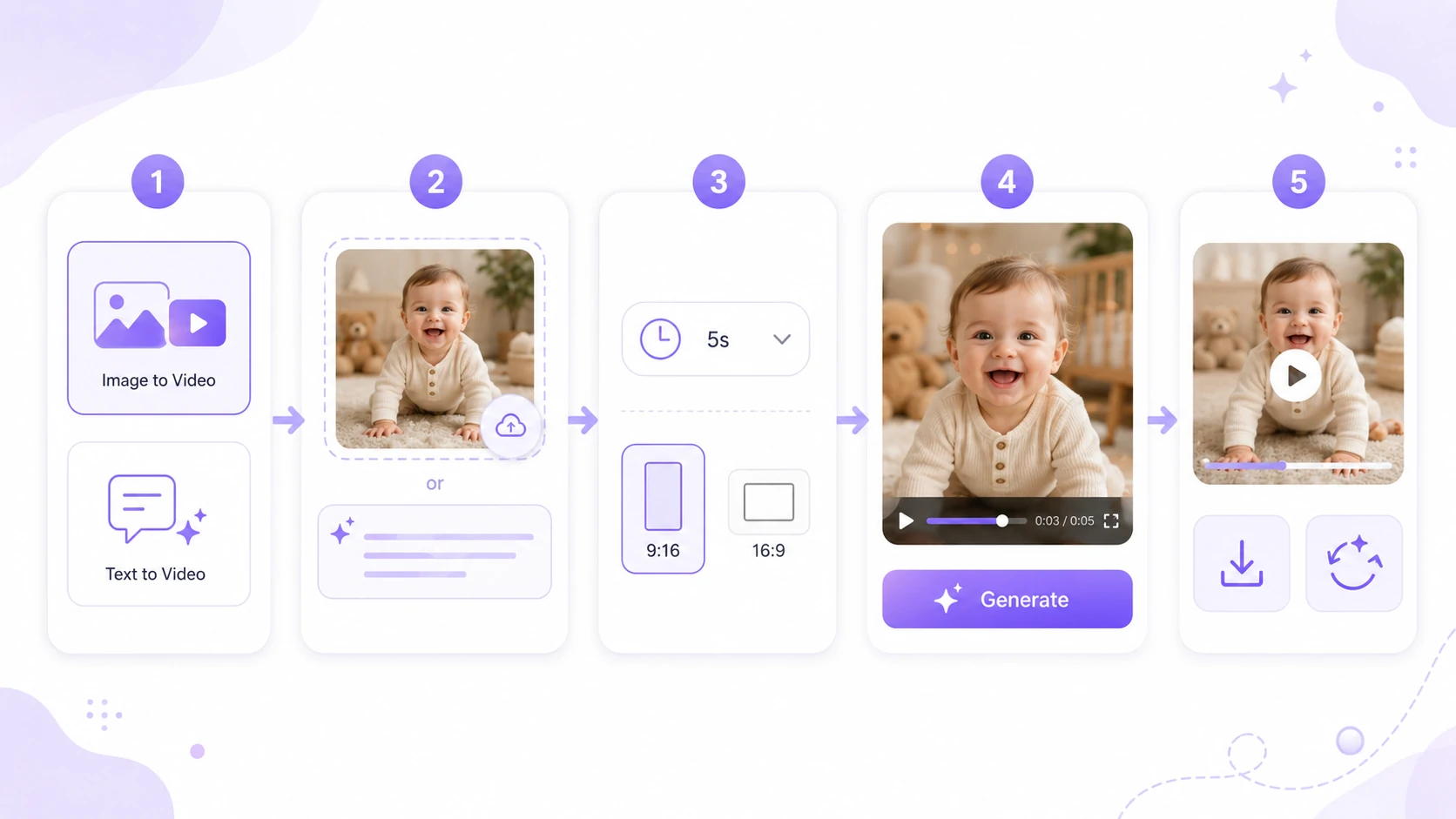
1
Name the baby moment
Decide whether the clip is a wave, smile, crawl, first step, birthday thank-you, or cozy nursery scene.
2
Choose Image-to-Video or Text-to-Video
Use Image-to-Video to animate a real baby photo. Use Text-to-Video when a written scene is enough.
3
Write one action, one setting, and one camera style
A compact prompt is easier to judge than a broad request for a cute baby video.
4
Set duration, aspect ratio, and model
Start with a short draft, choose 9:16 for mobile sharing or 16:9 for wider family clips, and review credits.
5
Generate and judge the motion fit
Check whether the face stays stable, the action matches the pose, and the crop works for the intended share format.
Choose the next baby video by missing context
The first clip should tell you what the page needs next: a better source photo, a clearer action, a warmer setting, or a more suitable dedicated generator.
Photo animation version
Keep the real baby photo and ask for a small smile, blink, wave, or gentle camera push-in.
New scene version
Use text-to-video when you want a cozy nursery, birthday setup, or family-room scene without preserving a real face.
Milestone version
Create one short clip around first smile, crawling, first steps, or a birthday moment instead of combining milestones.
Family-share version
Use softer lighting, slower camera movement, and a calmer prompt when the clip is meant for relatives.
Send edge cases to the right tool
Use the baby talking, dancing baby, or baby singing tools when the goal is speech, dance motion, or music instead of a general baby video.
Document the winning prompt
Save the prompt, aspect ratio, and duration that produced the best result so future baby video examples stay consistent.
Baby AI Video Generator FAQ
Practical answers for using a baby AI video generator, turning baby photos into videos, writing better prompts, choosing 9:16 clips, and improving generation quality.
What is a baby AI video generator?
Can I turn one baby photo into a video?
What baby video prompts work best?
What photo quality works best for baby photo to video AI?
Can I make baby videos for Reels, Shorts, or TikTok?
Is the baby AI video generator free?
What is the difference between baby photo to video and text-to-video?
Can I use AI baby videos commercially or share them online?