
Inspirations
AI Baby Cartoon Generator
Turn one baby photo into cartoon art for avatars, stickers, cards, and storybook-style keepsakes.


Turn a baby photo into cartoon art for a real use
Use AI Baby Cartoon when you need a stylized baby image for an avatar, birthday card, invitation, sticker, print, or family storybook visual.

Baby photo to cartoon baby art
A strong cartoon baby image keeps enough facial detail to feel personal while using a style that fits the final layout and audience.
Upload one baby photo with a clear face.
Choose from preset storybook, soft 3D, anime, watercolor, sticker, kawaii, comic, and pastel styles.
Use custom style text when a preset is close but not specific enough.
Select aspect ratio for profile pictures, cards, prints, or social posts.
Generate a few styles and keep the one that preserves the baby best.
Best for finished assets, not random filters
Choose a cartoon baby style by the photo, layout, and place you want to use it, from avatars to cards and storybook keepsakes.
Match the style to the purpose
Use soft watercolor or pastel styles for baby shower cards and keepsakes.
Use 3D or chibi styles for avatars and profile images.
Use storybook, fantasy, or comic looks for playful family posts.
Keep the baby face centered so the style transfer has enough detail to preserve identity.

Choose preset style, custom direction, and aspect ratio
Start with one reference photo, then choose a preset style, optional custom direction, aspect ratio, and review credits before generation.
Photo and style input
One baby photo is required.
Choose a preset cartoon style before generating.
Use custom style text when you want a more specific look.
Output options
Multiple preset art styles including storybook, soft 3D, anime, watercolor, sticker, kawaii, comic, and pastel looks.
Aspect ratio selector for avatar, card, print, or post layouts.
Credits displayed before generation.


Choose a photo for the cartoon asset you need
A cartoon baby avatar, sticker, card, and storybook portrait need different crops. Start from the final asset, then choose the photo that supports that style.
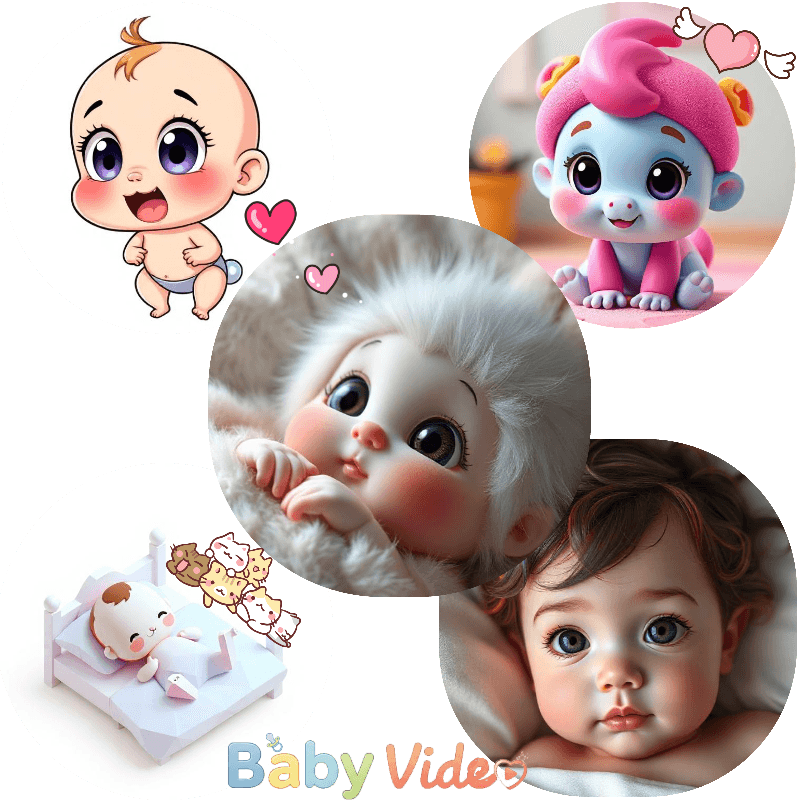
Let the final use decide the source photo
For avatars, use a close portrait with the face centered and enough room around the head.
For birthday cards or invitations, use a photo with extra background space so text can fit later.
For stickers, choose a bright expression and simple outline; cluttered blankets and toys make the silhouette weaker.
For storybook or watercolor styles, use soft lighting and avoid harsh shadows that can turn into muddy painted areas.
Avoid pacifiers, bottles, fingers, or heavy filters when the face needs to stay recognizable.
For print use, start with the highest-quality source photo you have and choose the aspect ratio before generating.
Choose style by where the cartoon will live
A cute result is not automatically useful. The best cartoon baby output is the one that still works at its intended size: avatar, card, sticker, print, or storybook page.
Judge the result as a finished asset
For profile images, zoom out in your preview and check whether the eyes and smile still read at small size.
For cards, avoid overly detailed backgrounds that compete with names, dates, or invitation text.
For stickers, test a clean chibi, kawaii, or 3D style with a simple pose and strong outline.
For keepsakes, compare softer watercolor or storybook styles before using dramatic comic effects.
If the cartoon looks generic, add a specific style direction such as pastel storybook, soft 3D toy, or watercolor keepsake.

How to create cartoon baby art
Create the image as a real asset: choose the destination, pick a compatible style, and generate the crop that will work in that layout.

1
Pick the asset type
Decide whether the result is for an avatar, sticker, birthday card, invitation, print, or storybook image.
2
Upload a photo that fits it
Use a centered portrait for avatars, a simple silhouette for stickers, or a roomier image for cards.
3
Choose the cartoon direction
Pick a preset style or add custom text for a specific look such as watercolor, storybook, chibi, soft 3D, or comic.
4
Set the layout ratio
Choose square for avatars and stickers, portrait for cards, or landscape for wider family layouts.
5
Generate and inspect the use case
Check whether the face, crop, background, and style still work in the final place you plan to use it.
Turn cartoon baby art into the right asset
After the first image, decide whether the next version should improve recognition, layout space, print softness, or sticker clarity.
Avatar version
Use square framing, a centered face, and a style that remains readable when cropped small.
Birthday card version
Use soft colors, calmer background detail, and enough open space for names or dates.
Keepsake print version
Use watercolor, storybook, or gentle 3D styles with readable facial detail and a less busy background.
Sticker version
Choose a compact pose, expressive face, and simple outline so the image can work as a sticker-style graphic.
Use Baby Video for motion
Cartoon Baby creates still images; use Baby Video if you want animation.
Use Future Baby for parent previews
Cartoon Baby stylizes one photo; Future Baby blends parent photos for creative previews.
AI Baby Cartoon Generator FAQ
Practical answers for turning baby photos into cartoon baby art, avatars, stickers, cards, and storybook-style images.
An AI baby cartoon generator turns one baby photo into stylized cartoon baby art. It can be used for avatars, stickers, birthday cards, keepsakes, invitations, and storybook-style family images.