Back to all guides
2026-01-12
AI Baby Talking Video Generator
AI baby talking turns one baby photo into a short talking video. Upload a clear portrait, add a script or audio, choose a model and resolution, then review the credit estimate before you generate.
Quick Steps
A fast checklist you can follow in under a minute.
- 1Open the AI Baby Talking tool.
- 2Upload a clear baby photo (front-facing, good lighting, minimal occlusion).
- 3Enter your script (text-to-speech) or upload your own audio file.
- 4Choose a model and resolution, then check the per-second rate shown in the editor.
- 5Generate and review the lip-sync result.
- 6Export and share (add captions for better engagement).
Tutorial Examples (with prompts & settings)
Each example below is pre-selected for this guide (not random).
Example 1
AI baby talking quality comparison
How to use this example
- 1.Open the tool.
- 2.Follow the inputs & settings below.
- 3.Upload the inputs shown below.
- 4.Review the inputs and choose the settings shown below.
- 5.Generate and iterate (crop/lighting/prompt) if needed.
Inputs
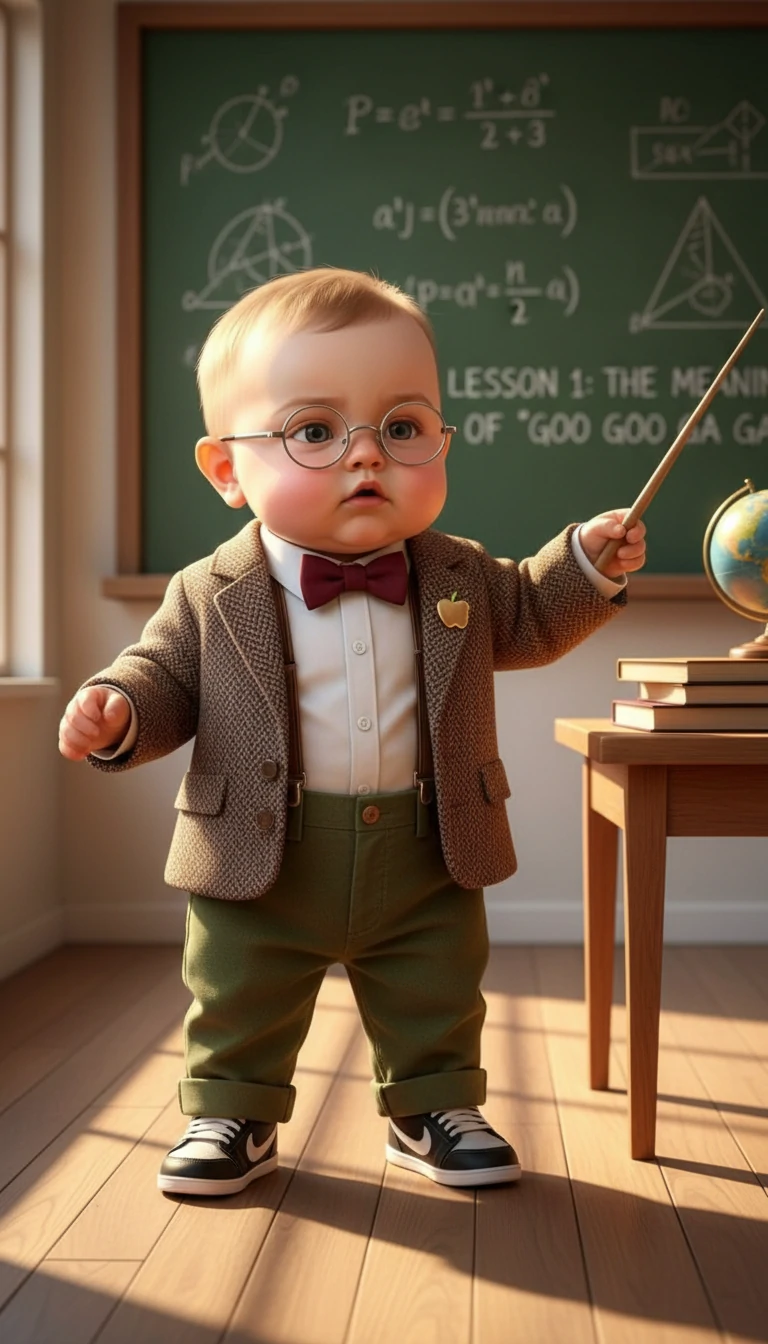
Inputs 1
Inputs 2
Settings (used in this example)
Example 2
AI baby talking example
How to use this example
- 1.Open the tool.
- 2.Follow the inputs & settings below.
- 3.Upload the input shown below.
- 4.Review the inputs and choose the settings shown below.
- 5.Generate and iterate (crop/lighting/prompt) if needed.
Inputs

Inputs 1
Settings (used in this example)
Example 3
AI baby talking example
How to use this example
- 1.Open the tool.
- 2.Follow the inputs & settings below.
- 3.Upload the input shown below.
- 4.Review the inputs and choose the settings shown below.
- 5.Generate and iterate (crop/lighting/prompt) if needed.
Inputs

Inputs 1
Settings (used in this example)
Tips
- Use a sharp, front-facing photo with clear facial features for best lip-sync results.
- Keep scripts short and natural—1-3 sentences work best.
- Upload your own audio to save on TTS costs and have more control over timing.
- Shorter clips (5-15 seconds) produce more natural-looking results.
FAQ
How do model and resolution affect AI baby talking cost?▼
Each model and resolution has its own per-second rate. Use the live credit estimate in the editor to compare options before generating.
Should I upload audio or use text-to-speech?▼
Uploading your own audio saves credits (no TTS fee) and gives you more control. TTS is convenient for quick experiments.
Why does the lip-sync look off?▼
Common causes: low-quality photo, obstructed face, or fast speech. Use a clearer photo, reduce occlusion, and slow down the audio.
What photo works best for AI baby talking?▼
Use a clear, well-lit, front-facing baby photo. Avoid hands, pacifiers, or anything covering the face. One face per photo works best.
Ready to generate?
Open the tool and reuse the prompts/settings above.