Back to all guides
2026-01-12
AI Baby Singing Video Generator
Turn any baby photo into a singing performance. Upload a clear baby photo, add an audio clip (your own or a sample), pick a model, and generate. The AI syncs lip movement to the audio for a natural-looking result.
Quick Steps
A fast checklist you can follow in under a minute.
- 1Open the Baby Singing tool.
- 2Upload a clear baby photo (front-facing, good lighting, minimal occlusion).
- 3Upload your own audio file or choose a sample clip (max 60 seconds, 20 MB).
- 4Choose 480p for a lower-cost draft or 720p for clearer detail.
- 5Generate and review the lip-sync result.
- 6Export in 9:16 and share on TikTok/Reels/Shorts.
Tutorial Examples (with prompts & settings)
Each example below is pre-selected for this guide (not random).
Example 1
Baby singing clip (480p)
How to use this example
- 1.Open the tool.
- 2.Follow the inputs & settings below.
- 3.Upload the input shown below.
- 4.Review the inputs and choose the settings shown below.
- 5.Generate and iterate (crop/lighting/prompt) if needed.
Inputs
.webp)
Inputs 1
Settings (used in this example)
Aspect ratio
9:16
Example 2
Baby singing clip (example 2)
How to use this example
- 1.Open the tool.
- 2.Follow the inputs & settings below.
- 3.Upload the input shown below.
- 4.Review the inputs and choose the settings shown below.
- 5.Generate and iterate (crop/lighting/prompt) if needed.
Inputs
.webp)
Inputs 1
Settings (used in this example)
Aspect ratio
9:16
Example 3
Baby singing clip (720p)
How to use this example
- 1.Open the tool.
- 2.Follow the inputs & settings below.
- 3.Upload the input shown below.
- 4.Review the inputs and choose the settings shown below.
- 5.Generate and iterate (crop/lighting/prompt) if needed.
Inputs
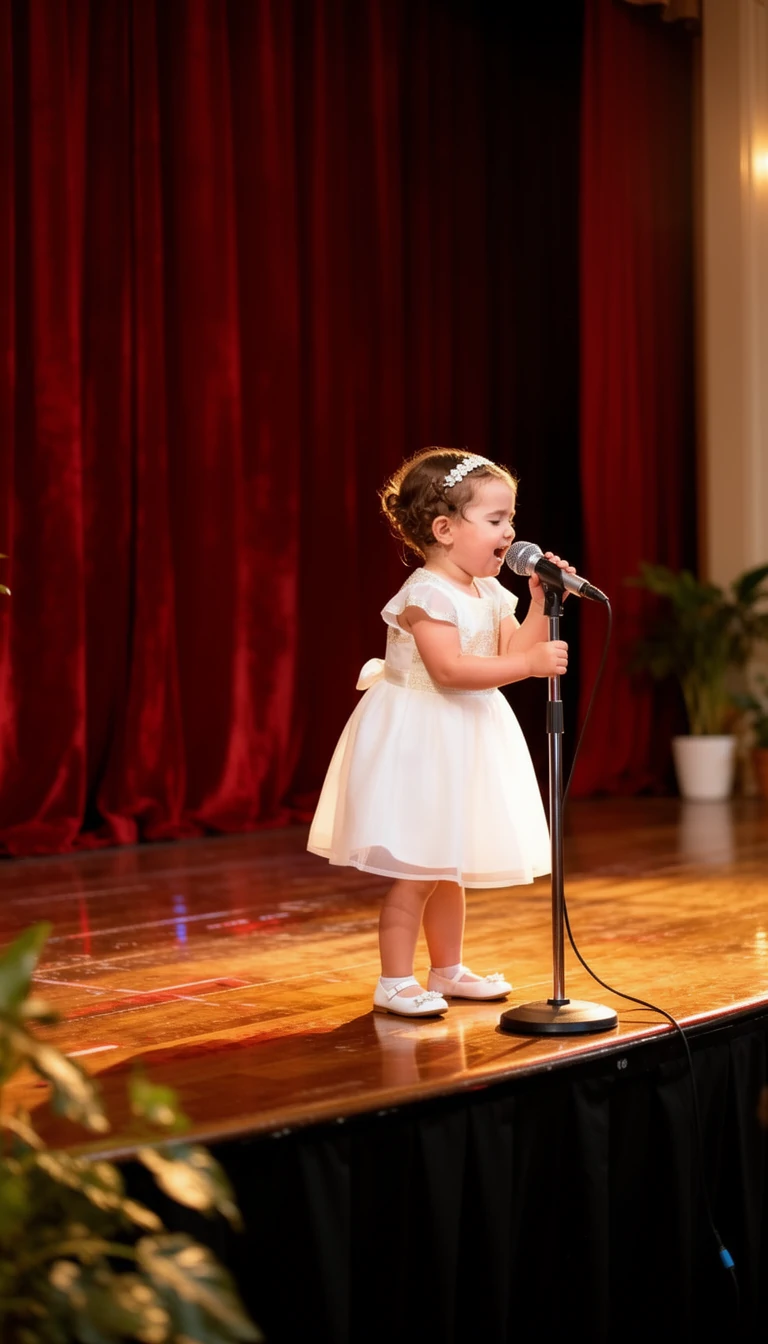
Inputs 1
Settings (used in this example)
Aspect ratio
9:16
Tips
- Use a sharp, front-facing baby photo with clear facial features for best lip-sync.
- Keep audio clips short (10–30 seconds) for the most natural results.
- Start with 480p to test the photo and audio, then use 720p for a final version if you need more detail.
- Avoid noisy audio or very fast singing—clean, moderate-tempo audio works best.
- Add captions and trending hashtags to boost engagement on social platforms.
FAQ
What audio formats are supported?▼
MP3, WAV, M4A, AAC, and OGG are all supported. Max file size is 20 MB and max duration is 60 seconds.
What's the difference between 480p and 720p for baby singing?▼
480p costs 16 credits per second and is useful for drafts. 720p costs 30 credits per second and provides clearer detail for a final clip.
Why does the lip-sync look off?▼
Common causes: low-quality photo, face partially covered, or very fast audio. Use a clearer photo and slower, cleaner audio for better results.
Can I use my own music or just samples?▼
Both. You can upload your own audio file or pick from the built-in sample clips (nursery rhymes, pop songs, etc.).
What photo works best for baby singing?▼
A clear, well-lit, front-facing baby photo with visible mouth and no occlusion (no pacifiers, hands, or toys covering the face).
Ready to generate?
Open the tool and reuse the prompts/settings above.